Wednesday, 28 September 2016

Creating UDL to test the Connection between SharePoint and SQL.


This post will guide on how to create and test the connectivity between SharePoint and SQL.

So lets get started :)

Sometimes while working on SharePoint we may encountered issue like

"A Network- related or instance occurred while establishing a connection to SQL server"
"The server was not found or was not accessible".

So UDL is the best way to test whether our SharePoint is able to communicate with SQL or not

Below are the steps to create the UDL:

1. Right click on the desktop and Go to New > Text Document


2. Now open the Text Document and Click on Save As. Give a name with UDL extension for example Test.UDL and Select All files in Save as type.


3. You text document will look like this now

4. Now we will check the connection between SharePoint and SQL. Open the UDL file.


5. Enter the SQL server name and Select window or specific username (they should have access to login to SQL) and Click on Test Connection


6. If communication is happening you will get result "Test connection succeeded". Otherwise it will fail.

Hope this article helped you out.

Happy SharePoinring :)


Monday, 26 September 2016

PowerShell to disable and enable the Sync option in SharePoint

This post is related to Power-shell cmd to disable and enable the Sync option in SharePoint

So lets get started :)

Our Sync option is working fine.


If you are using window Power-Shell then you have to add Power-Shell snap-ins for  SharePoint.

I ran these cmds on SharePoint management Shell
 
To disbale the Sync option  (ExcludeFromOfflineClient=1)

Get-SPSite -limit all | get-SPWeb -limit all | Foreach { $_.ExcludeFromOfflineClient=1;
$_.Update()}


After successfully completion of commands our sync option has been disable.


Now, we have to enable the Sync option again.
To enable the Sync option  (ExcludeFromOfflineClient=0)

Get-SPSite -limit all | get-SPWeb -limit all | Foreach { $_.ExcludeFromOfflineClient=0;
$_.Update()}


After successfully completion of commands our sync option is enable again.


Happy SharePointing :)

How to Disable the Sync option in Sharepoint 2016


Sync option enable users to keep copies in sync between SharePoint libraries and User's local disk.

Lets get started :)

We have to disable the sync option which can see on site collection level or at document libraries.


Steps to disable sync option:

1. Go to Site Settings.


2. Click on "Search and offline availability" under Search


3. Select no for offline Client Availability and click OK


4.  The Sync option has been disabled.


Happy  SharePointing :)


Friday, 23 September 2016

Unable to see the recent uploaded document in SharePoint Document library


Many users faces this issue.

They upload the document but unable to see it in document library. No need to worry in this case.

You just missed one step which was to check in the file.

Please follow the below steps to resolve it.

1. Open the document lib.

2. Click on Document library settings.


3. Now click on "Manage File which have no checked in version".


4.You can see your documents there, select the document and click on "Take Ownership of Selection".

5.Come back to your document library and Check-in the document.

Issue Resolved

Happy SharePointing :)

Adding Microsoft Project .mpp files into Search


This post will help you out with searching .mpp (Microsoft project) file in SharePoint.

So lets get started :)

1. First of all we have to add .mpp extension to our search service application file types.

2. Go to Search Service Application manage page > Click on File types.


3. Click on New File Type. Enter extension .mpp and click OK


4. mpp extension has been added to file types


5. Most important part you have to do an index reset and then full crawl of local SharePoint sites .

6.Once after the completion of Crawling. You can try to search for .mpp file in your sites

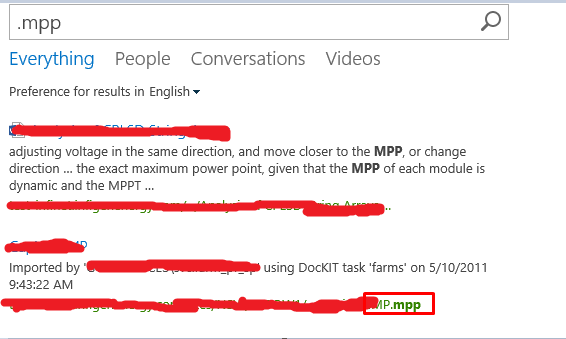
Below are the search result for Microsoft project file (.mpp)


Happy SharePointing :)

Thursday, 22 September 2016

SharePoint 2016 Software and Hardware Requirements.

This post will deal with basic software and hardware requirement you should achieve before you go for a SharePoint 2016 installation.

So lets get started :)

Hardware Requirement:


Operating System:

SharePoint 2016 Supported O/S:

1. Window Server 2012 R2
2. Windows Server 2016 Technical Preview.


.Net Framework Requirements:

Supported .net framework are 4.5.2 and 4.6.

Note: From January 2016 Microsoft will only support .net framework 4.5.2 or higher.

SQL Server Requirements:

Supported SQL servers are :-

1. SQL server 2014
2. SQL server 2016

Happy SharePointing :) 


Wednesday, 21 September 2016

Search Service Application on Server did not finish loading Issue

Issue:

While working on Search we faced very rare issue "Search Service Application on Server did not finish loading Issue"


Troubleshooting:


Check event logs and uls logs  getting error message stating that application : the device is not in ready state.
Checked permission all were fine.
Even when i click on content source or Crawl logs getting the same error.


Tried searching some blogs on google and found out that below cmd can fix the issue:

PSConfig  -cmd secureresources

Run that cmd it will take somewhere 5 to 10 minutes to complete.While command was running i was sitting with my finger crossed.

After the completion of command we were still facing the same issue.

Resolution:


After the completion we again checked event logs just to see if we can pin point the root cause 

This time we found out the search account was unable to connect to search database.

So after giving the access on db still no luck

So i thought of running the SharePoint Product Configuration wizard to put my bits n piceces in place.

Once SharePoint Product Configuration wizard was complete. I went to check the search application 
and this time is back to normal with running status, searchable items. everything was back to normal

Hope this will help you resolve your issue
Happy SharePointing :)